[Ubuntu] 03. SSH 서버 - (1)
카테고리: UBUNTU
🔔 SSH에서 가장 설정 변경을 많이 하는 항목
■ SSH 환경 설정파일 경로 : /etc/ssh/sshd_config
| 설정 | 내용 |
|---|---|
| Port | SSH 기본 포트인 22번을 다른 번호로 변경할 때 주로 사용함 |
| PermitRootLogin | Root 계정으로 SSH 접근을 허용할지 여부, 기본적으로 접근 불가함 |
| PasswordAuthentication | 패스워드를 이용한 인증을 허용할지에 대한 여부, 기본적으로 패스워드로 접근임 |
| PubkeyAuthentication | 퍼블릭키를 이용한 인증을 허용할지에 대한 여부, 기본적으로 허용함 |
🔔 패스워드 인증
Ubuntu를 설치하면 OpenSSH는 이미 기본적으로 설치되므로 새 패키지를 설치할 필요가 없으며 기본적으로 암호 인증을 사용하여 로그인할 수 있습니다. 그러나 기본적으로 루트 사용자 계정은 로그인이 허용되므로 설정을 변경하는 것이 좋습니다.
■ SSH 서버 - PermitRootLogin 설정
$ vi /etc/ssh/sshd_config

# 43행 : 변경(루트 로그인 금지)
PermitRootLogin no

$ systemctl restart sshd
■ SSH 클라이언트 - Ubuntu
$ apt -y install openssh-client


$ ssh root@dlp.srv.test
The authenticity of host 'dlp.srv.test (192.168.219.195)' can't be established.
ED25519 key fingerprint is SHA256:orC+ofYzJicAIW049Mw23VZWbOQFpEfDB46QpLbZ4VA.
This key is not known by any other names
Are you sure you want to continue connecting (yes/no/[fingerprint])? yes
Warning: Permanently added 'dlp.srv.test' (ED25519) to the list of known hosts.
root@dlp.srv.test's password:
Welcome to Ubuntu 22.04.2 LTS (GNU/Linux 5.15.0-73-generic x86_64)

 * Documentation:  https://help.ubuntu.com
 * Management:     https://landscape.canonical.com
 * Support:        https://ubuntu.com/advantage

  System information as of Mon Jun  5 04:29:12 PM KST 2023

  System load:  0.0               Processes:              200
  Usage of /:   46.9% of 9.75GB   Users logged in:        1
  Memory usage: 16%               IPv4 address for ens32: 192.168.219.195
  Swap usage:   0%


Expanded Security Maintenance for Applications is not enabled.

0 updates can be applied immediately.

Enable ESM Apps to receive additional future security updates.
See https://ubuntu.com/esm or run: sudo pro status


Last login: Mon Jun  5 16:09:21 2023 from 192.168.219.1
root@ubuntu:~#


$ ssh root@dlp.srv.test "cat /etc/passwd"
root@dlp.srv.test's password:
root:x:0:0:root:/root:/bin/bash
daemon:x:1:1:daemon:/usr/sbin:/usr/sbin/nologin
bin:x:2:2:bin:/bin:/usr/sbin/nologin
sys:x:3:3:sys:/dev:/usr/sbin/nologin
...
■ SSH 클라이언트 - Windows
🔔 SSH 파일 전송
(a) Ubuntu - SCP(Secure Copy)를 사용하는 예
# 로컬 호스트의 [test.txt]를 원격 호스트 [dlp.srv.test]에 복사
$ scp ./test.txt root@dlp.srv.test:~/
root@dlp.srv.test's password:
test.txt                                      100%   10MB  41.5MB/s   00:00
# 원격 호스트 [dlp.srv.test]의 [~/tet.txt]를 localhost에 복사
$ scp root@dlp.srv.test:~/test.txt ./test.txt
root@dlp.srv.test's password:
test.txt                                      100%   10MB  91.0MB/s   00:00
(b) Ubuntu - SFTP(SSH File Transfer Protocol)를 사용하는 예
SFTP 서버 기능은 기본적으로 활성화되지만 그렇지 않은 경우 [/etc/ssh/sshd_config]에 [Subsystem sftp /usr/lib/openssh/sftp-server] 줄을 추가하도록 활성화합니다.
# sftp [Option] [user@host]
$ sftp root@dlp.srv.test
root@dlp.srv.test's password:
Connected to dlp.srv.test.
sftp>

# 원격 호스트의 현재 디렉토리 표시
sftp> pwd
Remote working directory: /root

# 로컬 호스트에 현재 디렉토리 표시
sftp> !pwd
/root

# 원격 호스트의 현재 디렉토리에 파일 표시
sftp> ls -l
drwx------    3 root     root         4096 Jun  5 15:55 snap
-rw-r--r--    1 root     root     10485760 Jun  5 16:40 test.txt

# 로컬 호스트의 현재 디렉터리에 파일 표시
sftp> !ls -l
total 24
-rw-r--r-- 1 root root  239 May  6 23:18 arith.awk
-rw-r--r-- 1 root root   74 May  6 22:21 a.sed
-rw-r--r-- 1 root root   28 May  6 22:24 c.sed
-rw-r--r-- 1 root root  244 May  6 23:12 disk_total.awk
-rw-r--r-- 1 root root   74 May  6 22:15 i.sed
drwx------ 3 root root 4096 May  3 13:12 snap

# 디렉터리 변경
sftp> cd /var/log/
sftp> pwd
Remote working directory: /var/log

# 원격 호스트에 파일 업로드
sftp>  put c.sed c-copy.sed
Uploading c.sed to /root/c-copy.sed
c.sed                                                                         100%   28    18.5KB/s   00:00

# 원격 호스트에서 파일 다운로드
sftp> get test.txt
Fetching /root/test.txt to test.txt
test.txt                                                                      100%   10MB 102.7MB/s   00:00


# 원격 호스트에 디렉토리 생성
sftp> mkdir testdir
sftp> ls -l
-rw-r--r--    1 root     root           28 Jun  5 16:47 c-copy.sed
drwx------    3 root     root         4096 Jun  5 15:55 snap
-rw-r--r--    1 root     root     10485760 Jun  5 16:40 test.txt
drwxr-xr-x    2 root     root         4096 Jun  5 16:48 testdir

# 원격 호스트에서 디렉토리 삭제
sftp> rmdir testdir
sftp> ls -l
-rw-r--r--    1 root     root           28 Jun  5 16:47 c-copy.sed
drwx------    3 root     root         4096 Jun  5 15:55 snap
-rw-r--r--    1 root     root     10485760 Jun  5 16:40 test.txt

# 원격 호스트에서 파일 삭제
sftp> rm c-copy.sed
Removing /root/c-copy.sed


# ![command]를 사용하여 명령 실행
sftp> !cat /etc/passwd
root:x:0:0:root:/root:/bin/bash
daemon:x:1:1:daemon:/usr/sbin:/usr/sbin/nologin
bin:x:2:2:bin:/bin:/usr/sbin/nologin
sys:x:3:3:sys:/dev:/usr/sbin/nologin
...

# exit
sftp> quit
221 Goodbye.
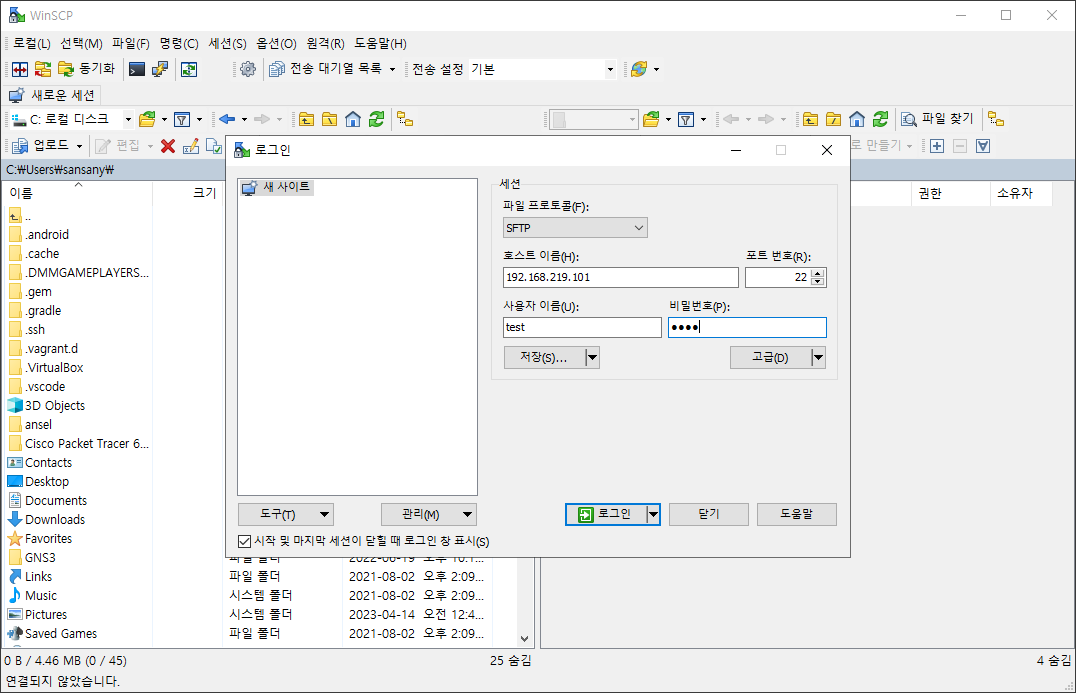
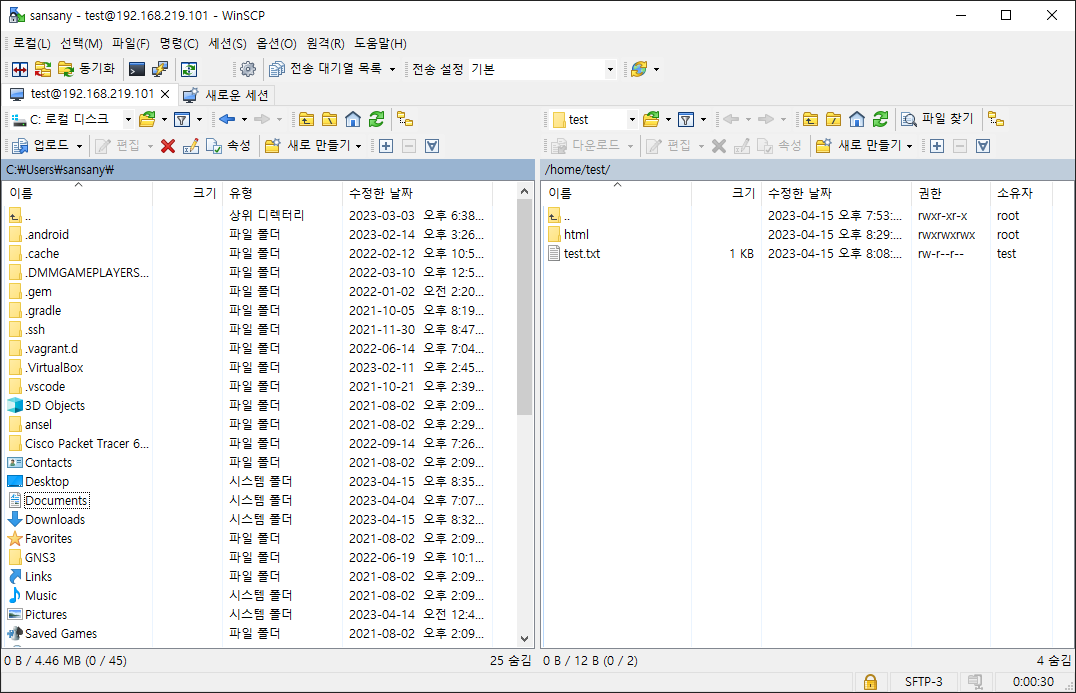
(c) Windows - WinSCP을 사용하는 예
WinSCP 설치 : https://winscp.net/eng/download.php
🔔 SSH 키쌍 인증
(a) Ubuntu
■ 각 사용자별로 Key-Pair를 생성하여 SSH Server Host에서 일반 사용자와 로그인하고 다음과 같이 작업합니다.
$ ssh-keygen
Generating public/private rsa key pair.
Enter file in which to save the key (/root/.ssh/id_rsa):
Enter passphrase (empty for no passphrase):
Enter same passphrase again:
Your identification has been saved in /root/.ssh/id_rsa
Your public key has been saved in /root/.ssh/id_rsa.pub
The key fingerprint is:
SHA256:H1fO+XsJHHHkveLtqn1CUdAzbFwBg/LTvmNXmHQ780A root@ubuntu
The key's randomart image is:
+---[RSA 3072]----+
|            .+Bo+|
|         . . .oX.|
|          o . *.+|
|           o BE.o|
|        S . =+*=.|
|         . o.=*=.|
|          . ..ooB|
|            .=.++|
|           .oo*o.|
+----[SHA256]-----+


$ ls -al ~/.ssh
total 16
drwx------ 2 root root 4096 Jun  5 16:52 .
drwx------ 5 root root 4096 Jun  5 16:49 ..
-rw------- 1 root root    0 Jun  5 15:55 authorized_keys
-rw------- 1 root root 2590 Jun  5 16:52 id_rsa
-rw-r--r-- 1 root root  565 Jun  5 16:52 id_rsa.pub


$ cat ~/.ssh/id_rsa.pub >> ~/.ssh/authorized_keys
■ 서버에 작성된 개인 키를 클라이언트로 전송한 후 키 쌍 인증확인으로 로그인할 수 있습니다.
$ mkdir ~/.ssh

$ chmod 700 ~/.ssh

# 개인 키를 로컬 ssh 디렉토리로 전송
$ scp root@dlp.srv.test:~/.ssh/id_rsa ~/.ssh
root@dlp.srv.test's password:
id_rsa                                                                        100% 2590   510.2KB/s   00:00

$ ssh root@dlp.srv.test
Welcome to Ubuntu 22.04.2 LTS (GNU/Linux 5.15.0-73-generic x86_64)

 * Documentation:  https://help.ubuntu.com
 * Management:     https://landscape.canonical.com
 * Support:        https://ubuntu.com/advantage

  System information as of Mon Jun  5 05:24:47 PM KST 2023

  System load:  0.0               Processes:              201
  Usage of /:   47.0% of 9.75GB   Users logged in:        1
  Memory usage: 17%               IPv4 address for ens32: 192.168.219.195
  Swap usage:   0%


Expanded Security Maintenance for Applications is not enabled.

0 updates can be applied immediately.

Enable ESM Apps to receive additional future security updates.
See https://ubuntu.com/esm or run: sudo pro status


Last login: Mon Jun  5 16:36:13 2023 from 192.168.219.1
■ ssh-copy-id
-
ssh-copy-id은 원격 서버에 공개 키를 복사하고 설정하는 명령으로 이 명령을 사용하면 원격 서버에 ssh로 접속할 때 암호를 입력하지 않아도 됩니다.
-
이 명령은 로컬 컴퓨터의 공개 키를 원격 서버의 authorized_keys 파일에 추가합니다.
# ssh-copy-id -i <공개 키 파일> <사용자명>@<서버 주소>
$ sh-copy-id -i ~/.ssh/id_rsa.pub 192.168.219.192
/usr/bin/ssh-copy-id: INFO: Source of key(s) to be installed: "/root/.ssh/id_rsa.pub"
The authenticity of host '192.168.219.192 (192.168.219.192)' can't be established.
ED25519 key fingerprint is SHA256:Q76AX6tqnUYt6ARI6TaTQlVJid3Wc/myrGBN3Yddpqw.
This key is not known by any other names
Are you sure you want to continue connecting (yes/no/[fingerprint])? yes
/usr/bin/ssh-copy-id: INFO: attempting to log in with the new key(s), to filter out any that are already installed
/usr/bin/ssh-copy-id: INFO: 1 key(s) remain to be installed -- if you are prompted now it is to install the new keys
root@192.168.219.192's password:

Number of key(s) added: 1

Now try logging into the machine, with:   "ssh '192.168.219.192'"
and check to make sure that only the key(s) you wanted were added.


$ ssh 192.168.219.192
Welcome to Ubuntu 22.04.2 LTS (GNU/Linux 5.15.0-71-generic x86_64)

 * Documentation:  https://help.ubuntu.com
 * Management:     https://landscape.canonical.com
 * Support:        https://ubuntu.com/advantage

  System information as of Mon Jun  5 05:29:04 PM KST 2023

  System load:  0.00537109375     Processes:              204
  Usage of /:   48.3% of 9.75GB   Users logged in:        1
  Memory usage: 18%               IPv4 address for ens32: 192.168.219.192
  Swap usage:   0%

 * Strictly confined Kubernetes makes edge and IoT secure. Learn how MicroK8s
   just raised the bar for easy, resilient and secure K8s cluster deployment.

   https://ubuntu.com/engage/secure-kubernetes-at-the-edge

 * Introducing Expanded Security Maintenance for Applications.
   Receive updates to over 25,000 software packages with your
   Ubuntu Pro subscription. Free for personal use.

     https://ubuntu.com/pro

Expanded Security Maintenance for Applications is not enabled.

43 updates can be applied immediately.
To see these additional updates run: apt list --upgradable

Enable ESM Apps to receive additional future security updates.
See https://ubuntu.com/esm or run: sudo pro status


Last login: Mon Jun  5 16:38:07 2023 from 192.168.219.1
(b) Windows 클라이언트에서 SSH 키 쌍 인증
■ 윈도우즈 클라이언트에서 SSH 서버에 로그인하는 예제로, 그 전에 Windows Client에 개인 키를 전송한다.
■ /etc/ssh/sshd_config에서 PubkeyAuthentication 설정
$ cat /etc/ssh/sshd_config | grep Pubkey
PubkeyAuthentication yes
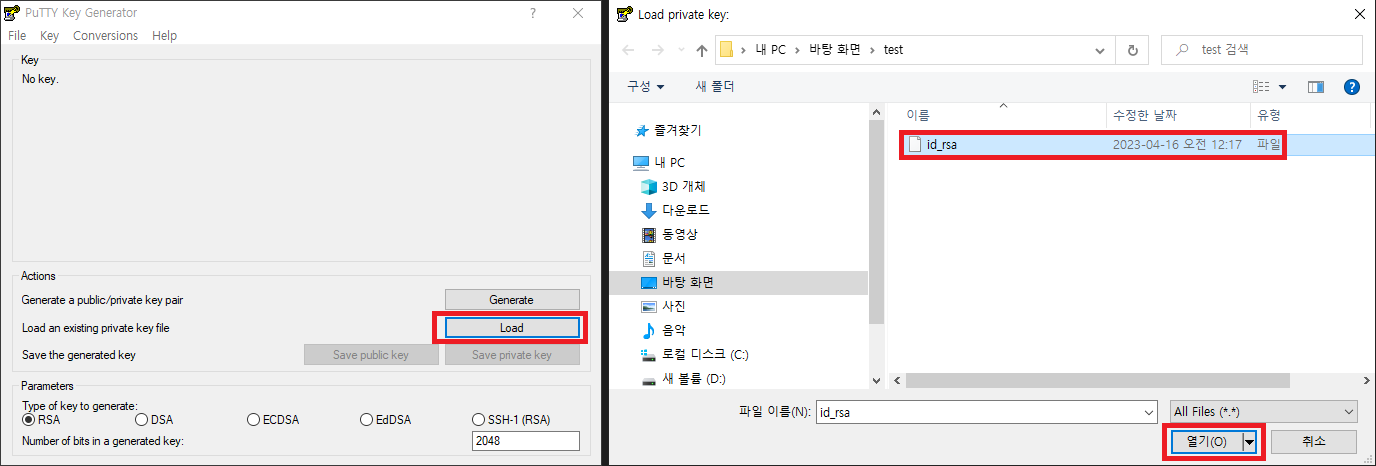
■ [Puttygen.exe]를 실행한 후 다음 창에서 [Load] 버튼을 클릭
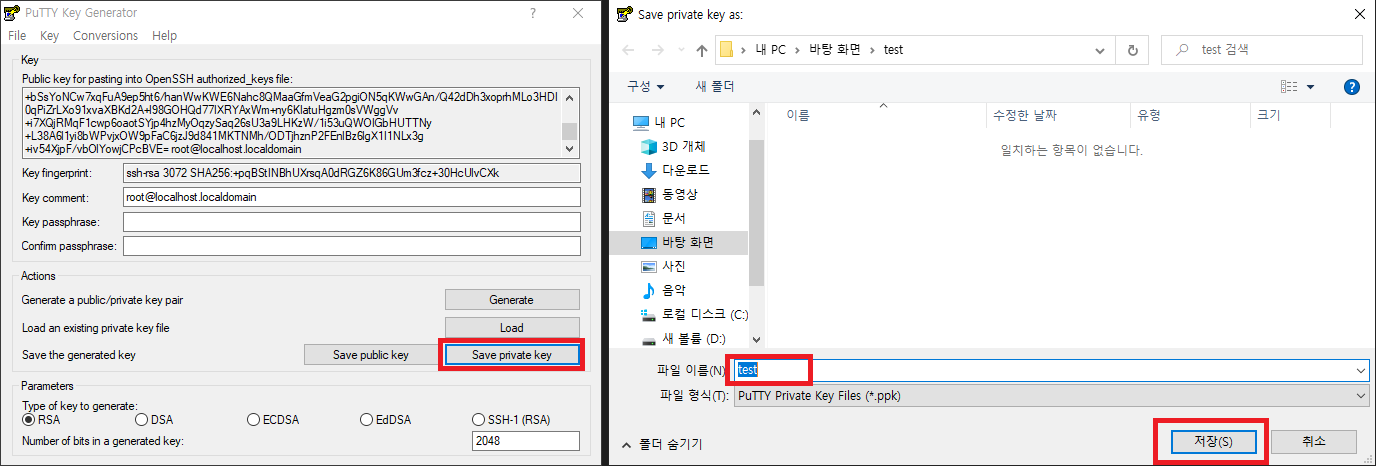
■ [Save private key] 버튼을 클릭하여 원하는 파일 이름으로 원하는 폴더에 저장
■ 서버에 SSH 키 등록 - Puttygen.exe에서 Public Key for pasting … 부분을 복사해서 “.ssh/authorized_keys” 파일에 저장
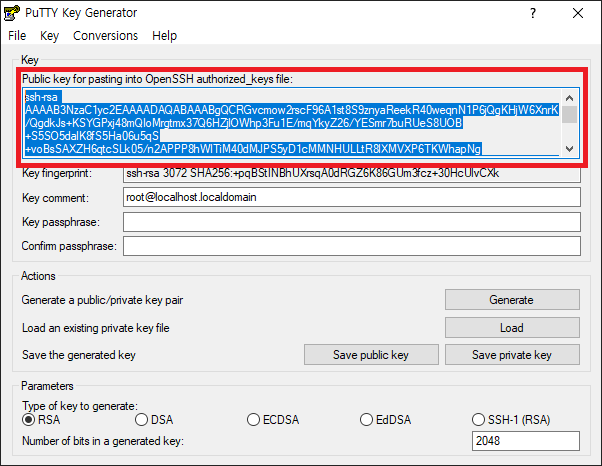
$ vi .ssh/authorized_keys

$ cat .ssh/authorized_keys
ssh-rsa AAAAB3NzaC1yc2EAAAAD....
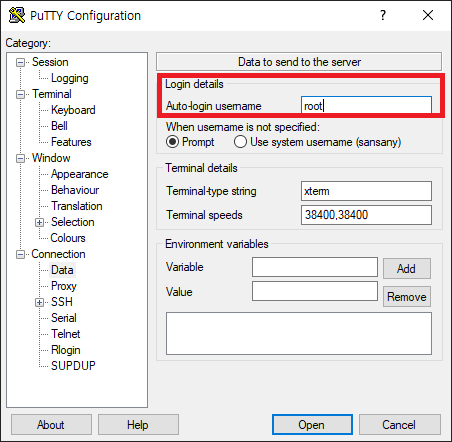
■ Connection > Data > Login-details에서 SSH 키를 설정한 계정을 입력
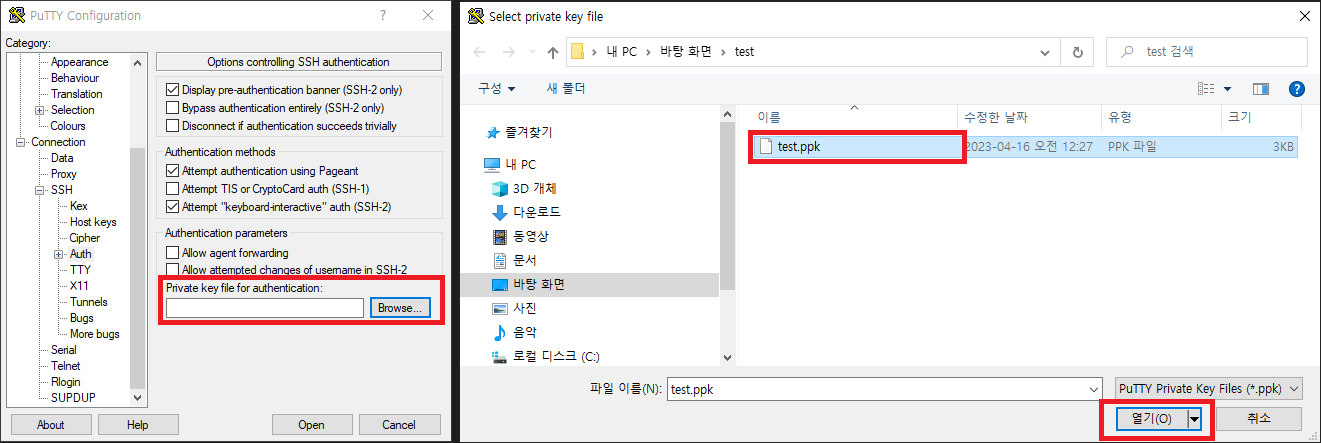
■ Connection > SSH > Auth에서 Private key file for authentication의 Browse 버튼을 클릭 후 Private key를 선택
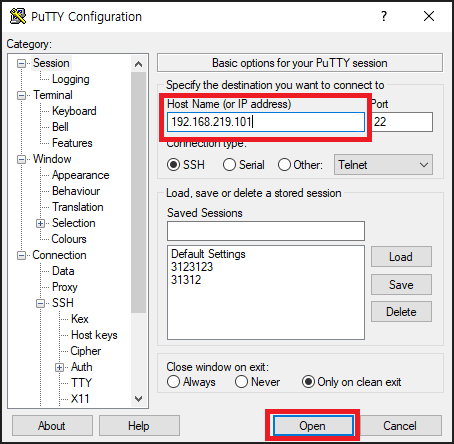
■ Session으로 돌아와서 (옵션을 Save를 하십쇼) 접속
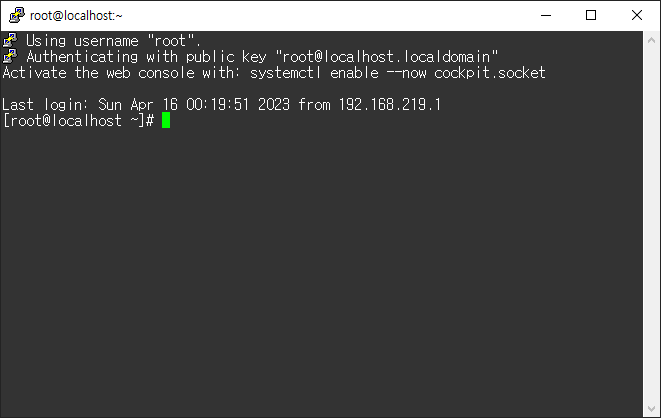
■ 암호 없이 SSH 키로 접속이 되는지 확인
댓글 남기기